
Queue management
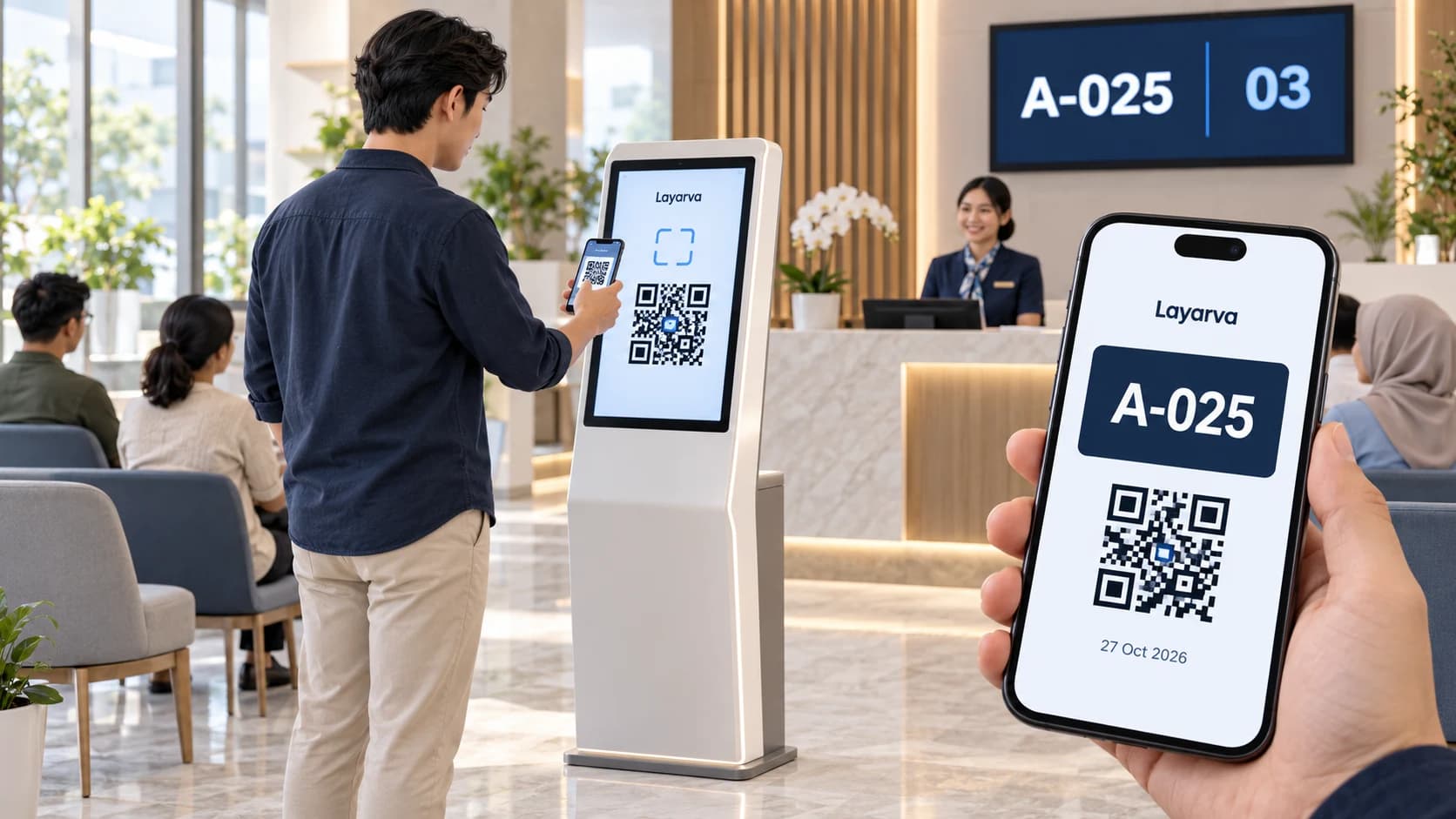
Your queue starts with a scan. Your ticket stays on your phone.
Let visitors choose a service and receive a digital ticket through a Cloud QR KiosK. Connect registration, optional forms, operator calls, and queue displays in one platform — with regular printed tickets available when needed.
Paperless Queue · QR KiosK Cloud
Scan the kiosk. Keep your ticket on your phone.
Let visitors choose a service from their own phone and receive a digital queue ticket. Your Cloud QR KiosK runs without a ticket printer, paper rolls, or shared service buttons.
Discuss your queue setupScan at the kiosk
Open the QR from the kiosk screen using your phone camera.
Choose a service
Choose a queue in your phone browser and complete a form if one is enabled.
Save your digital ticket
Receive a ticket with a queue number and QR that you can download. Wait for the service call.
No ticket printing
Reduce paper use and the need to refill ticket rolls or maintain a ticket printer.
Forms that fit your service
Enable fields such as a name, registration number, date, dropdown, or checkbox. Authorized operators can view submitted answers.
A QR that refreshes
The kiosk QR is time-limited and refreshes after a ticket is issued to help reduce reuse. A visual verification code helps staff match a digital ticket.
Connected to your workflow
Configure queue event webhooks for your endpoint. Include selected form answers when enabled, and use the operator console for calls and service progress.
QR paperless mode requires Cloud and an internet connection, via a kiosk browser or the supported Layarva Android KiosK app. Visitors use their phone browser. QR mode is not available for Edge or Offline. Regular kiosks with supported ticket printing remain available.
The flow
Kiosk to counter, in one system.
- 1
Kiosk
With Cloud QR mode, visitors scan the kiosk, choose a service in their phone browser, and receive a downloadable digital ticket. Regular mode can issue a printed ticket with a supported printer.
- 2
Queue engine
The ticket enters the right service queue and waits its turn.
- 3
Operator
Staff call next, recall, start, complete or mark a no show from the counter.
- 4
Display
The number appears on the queue display, with a chime and text-to-speech announcement.
The difference
Your queue screen is still a digital signage screen.
The queue display is designed in Layarva Studio, on the same canvas as every other screen. That means the space around the number is yours — for promotions, health information, event schedules or whatever the room needs. Turn waiting time into communication time.
A-025
Counter 3
Operator
Everything the counter needs, and nothing it does not.
The operator console is a working tool for someone who is also talking to a visitor. Call next, recall a number that did not answer, start and complete a service, or mark a no show.
- Call next and recall
- Start, complete, no show
- Multiple counters per service
- Multi-service in one Queue Unit
- View submitted form answers and a digital ticket’s visual verification code

Regular KiosK
Keep a printed ticket option when your service needs it.
The kiosk station shows the services on offer and issues a ticket for the one the visitor picks. Where a thermal printer is connected, the ticket is printed and can be reprinted.
- Multi-service selection
- Issue, print and reprint
- A dedicated KiosK canvas editor and ticket templates

Multi-service
One location, several queues.
Most places do not have one queue. They have registration, then pharmacy, then the cashier — and a visitor may pass through more than one of them.
Hospital
Registration, pharmacy, cashier, laboratory.
Bank
Customer service, teller, priority service.
Government office
Registration, verification, document collection.
Queue capability
A Queue Unit is a Queue Unit.
Queue capability is not rationed by tier. Plans differ in how many Queue Units they include, not in what a Unit can do.
| Feature | Flex / Starter + add-on | Business | Premium | Queue Only |
|---|---|---|---|---|
| Queue Units | Add-on | 1 included | 3 included | 1 included |
| Queue display designer | Included | Included | Included | Included |
| Full Studio Canvas | Included | Included | Included | Included |
| Kiosk station | Included | Included | Included | Included |
| Multi-service queue | Included | Included | Included | Included |
| Issue ticket | Included | Included | Included | Included |
| Print and reprint | Included | Included | Included | Included |
| Call next | Included | Included | Included | Included |
| Recall | Included | Included | Included | Included |
| Start and complete | Included | Included | Included | Included |
| No show | Included | Included | Included | Included |
| Chime | Included | Included | Included | Included |
| Text-to-speech | Included | Included | Included | Included |
| Thermal printer | Included | Included | Included | Included |
| Queue monitoring | Included | Included | Included | Included |
| Queue reports | Included | Included | Included | Included |
Where it fits
Queues that already exist.
Healthcare
Clinics, hospitals, laboratories, pharmacies.
Public service
Counters where citizens wait for a document or a decision.
Financial service
Banks, cooperatives, finance offices.
Retail
Customer service, pickup counters, service centres.
Automotive
Workshops and service counters.
Education
Registration, student services, administration.
Questions
Can visitors take a ticket without printing?
Yes. In Cloud QR mode, visitors scan the kiosk screen, select a service in their phone browser, and receive a digital ticket with a queue number and QR that can be downloaded. The kiosk does not need a ticket printer in this mode.
Does paperless QR mode work with Edge or Offline?
QR paperless mode currently requires Cloud and an internet connection. It runs through a kiosk browser or a supported Layarva Android KiosK app. Visitors use their phone browser. This QR mode is not available in Edge or Offline.
Can we collect registration details and connect our own system?
You can enable a form with configurable fields for the Cloud QR flow. Authorized operators can view submitted answers. Configure a queue event webhook for your own endpoint and explicitly select form answers to include when needed. This requires your organization to configure and connect its endpoint.
Do I need a separate plan for the queue?
Not necessarily. Business includes one Queue Unit and Premium includes three. Starter can add a Queue Unit as an add-on. If you only need the queue and no signage network, Queue Only is a plan on its own.
Can the queue display show other content?
That is the point of it. The display is a Studio layout, so the queue panel is one region on a canvas you design — the rest can carry promotions, announcements, video or a ticker.
Does it announce the number out loud?
Yes — a chime and text-to-speech announcement accompany a call, and both are part of every Queue Unit.
Can it print tickets?
Where a supported thermal printer is connected to the kiosk, tickets can be printed and reprinted. Check the device compatibility page before buying hardware.